How to Turn On 2-Step Login for Your Email
This guide helps you set up extra protection for your email account using your phone. It takes just a few minutes, and you only need to do it once.
What Is 2-Step Login?
After turning it on, signing in to your email will require:
Your password (like usual)
A 6-digit code from an app on your phone
This makes your account much more secure.
Step-by-Step Instructions
✅ Step 1: Go to Settings
Log in to your email
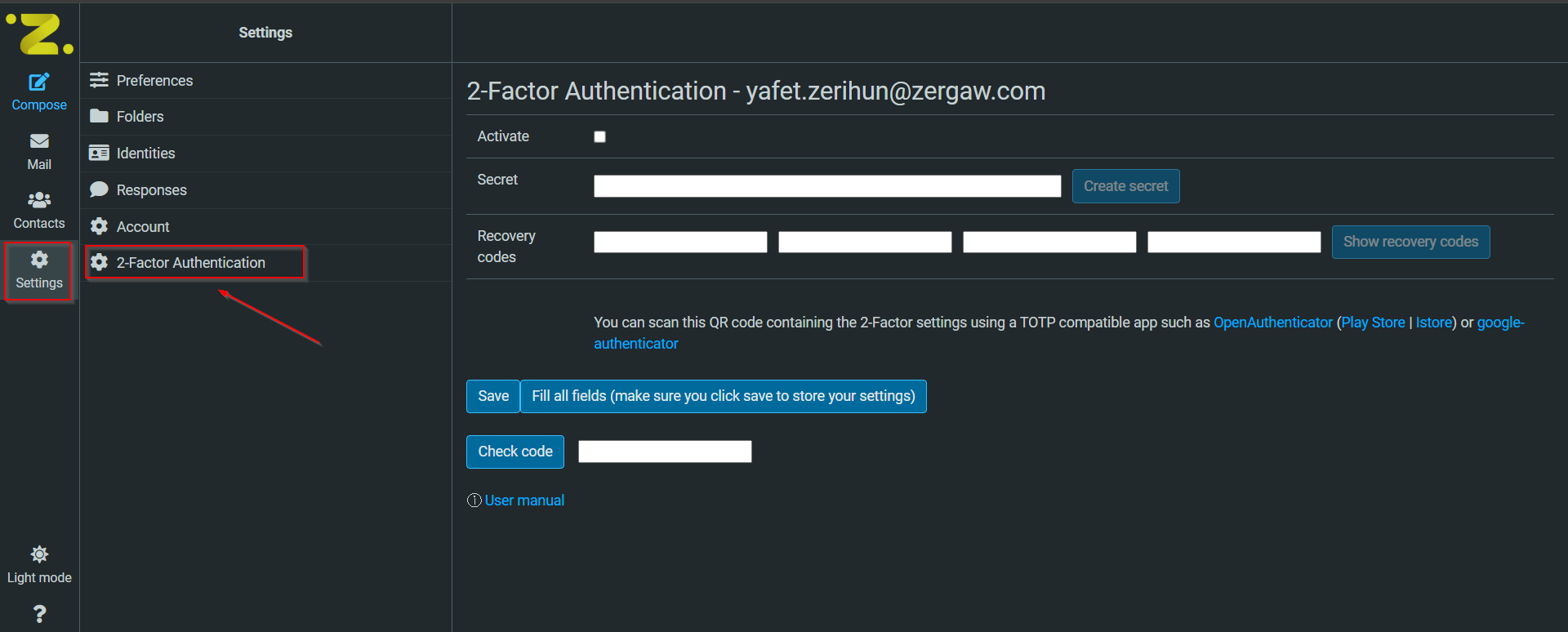
Click the Settings icon on the left side
Then click on 2-Factor Authentication
✅ Step 2: Create a Security Code
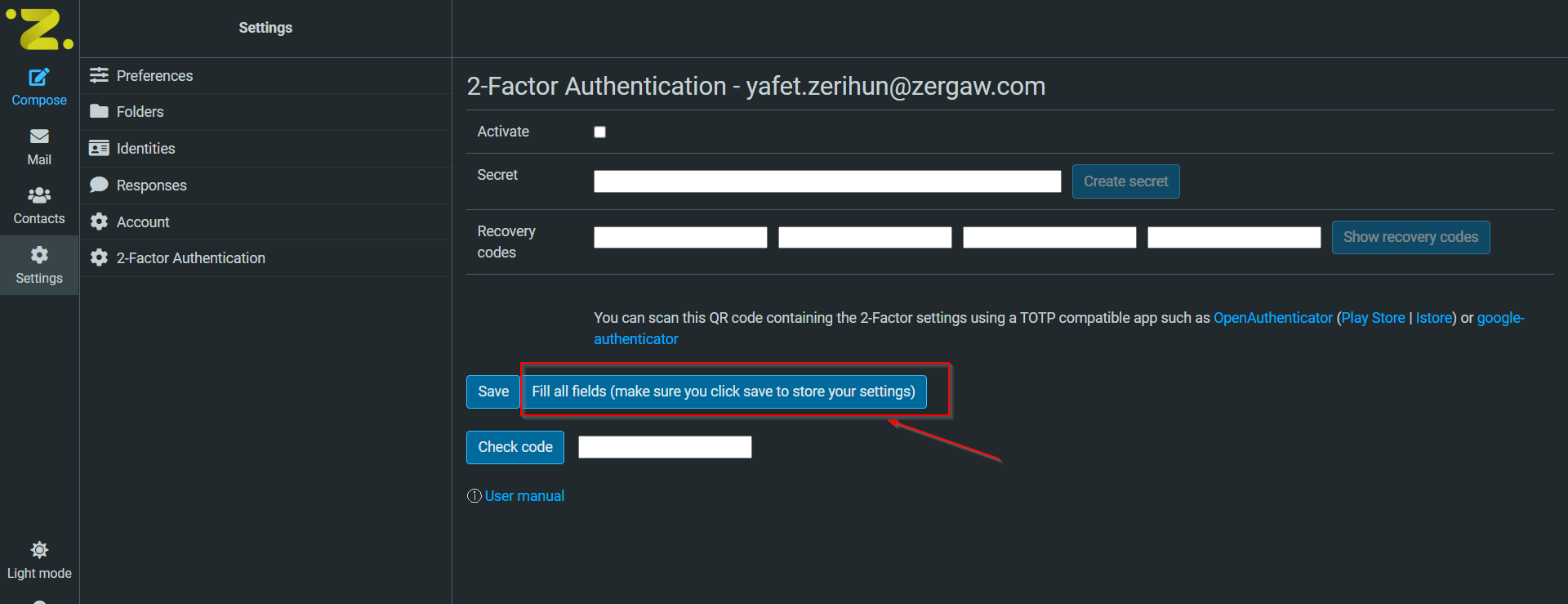
Check the box Fill all fields
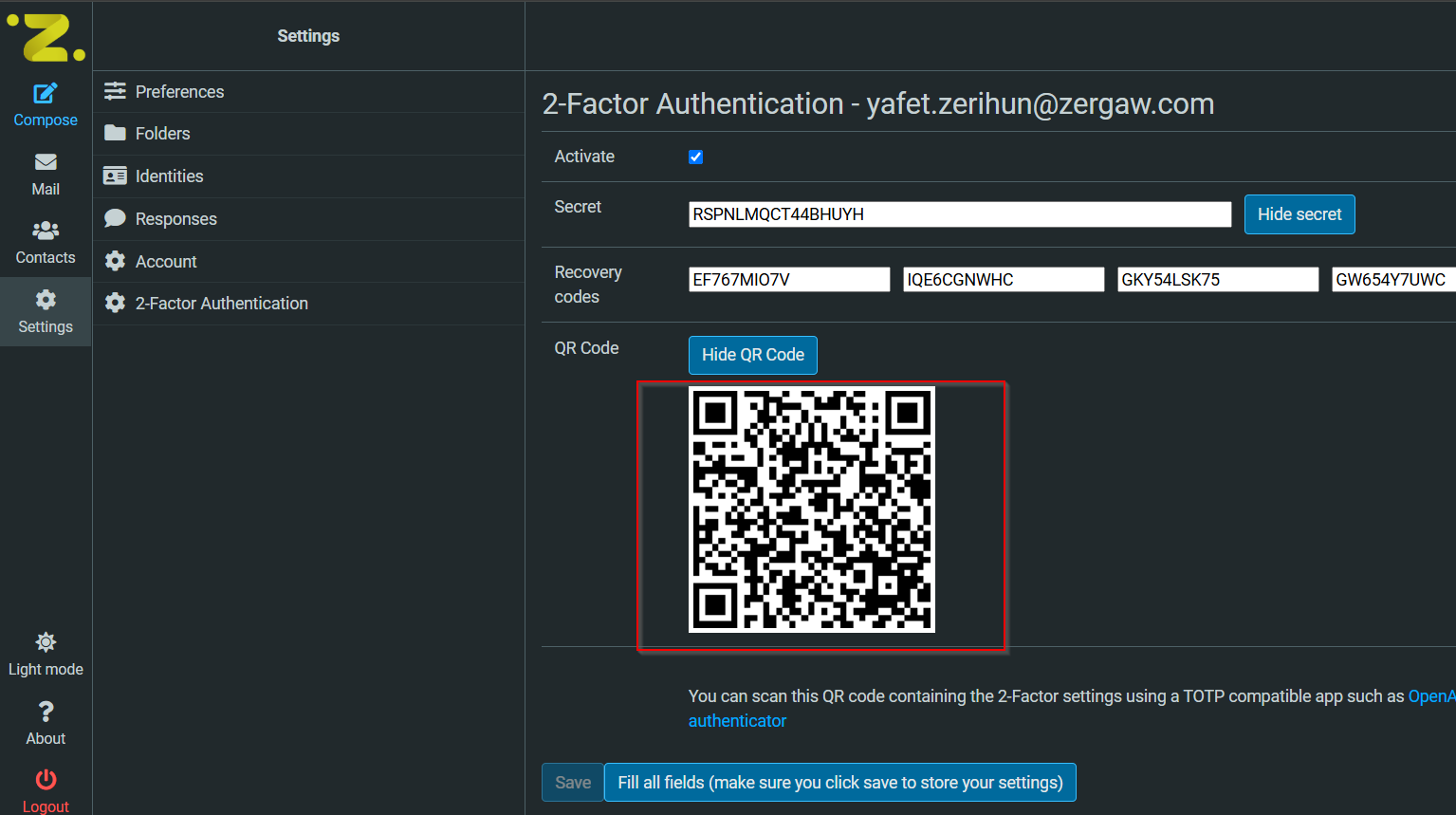
New boxes will appear for you to scan
✅ Step 3: Scan the Code With Your Phone
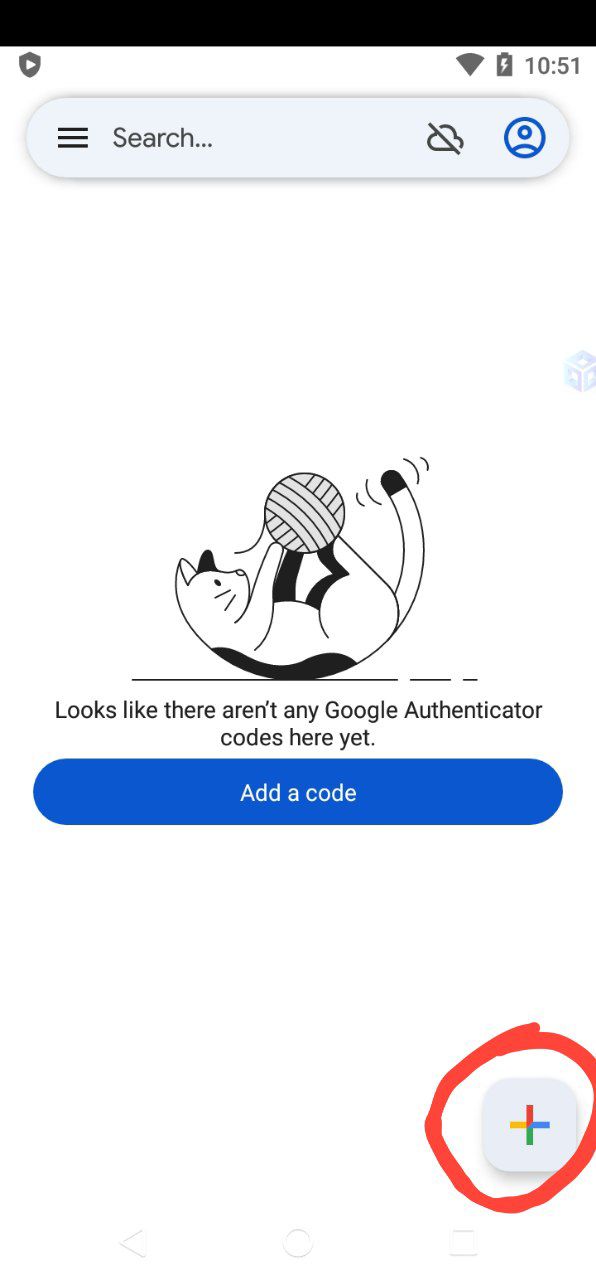
On your phone, open the Google Authenticator app (If you don’t have it yet, download it from the Play Store or App Store)
Tap the + icon
Choose Scan a QR code
Use your phone’s camera to scan the QR code shown on your screen
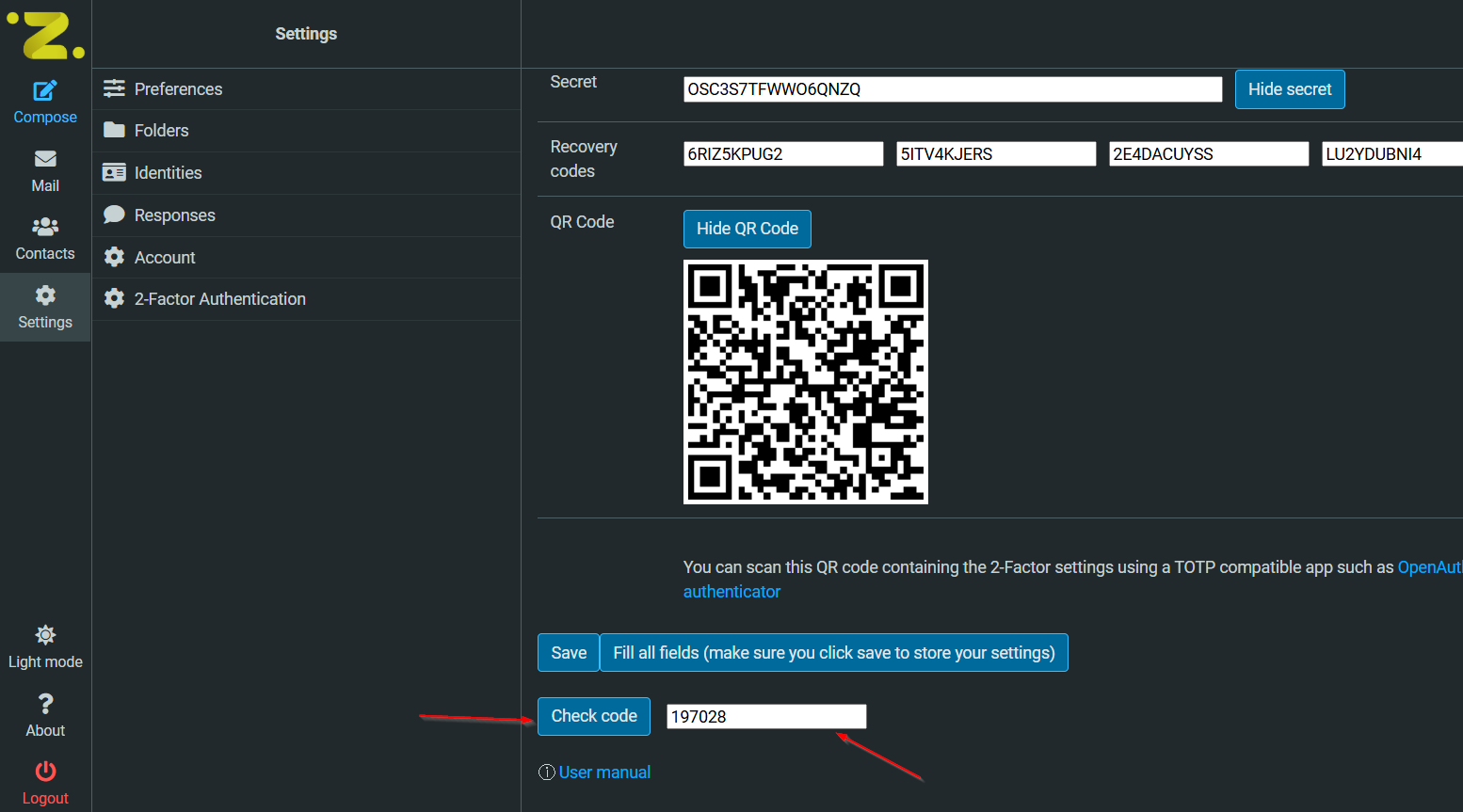
✅ Step 4: Test the 6-digit Code
After scanning, the app will show a 6-digit code that changes every 30 seconds
Enter this code into the box labeled Check code
Click Check code
✅ Step 5: Save Your Settings
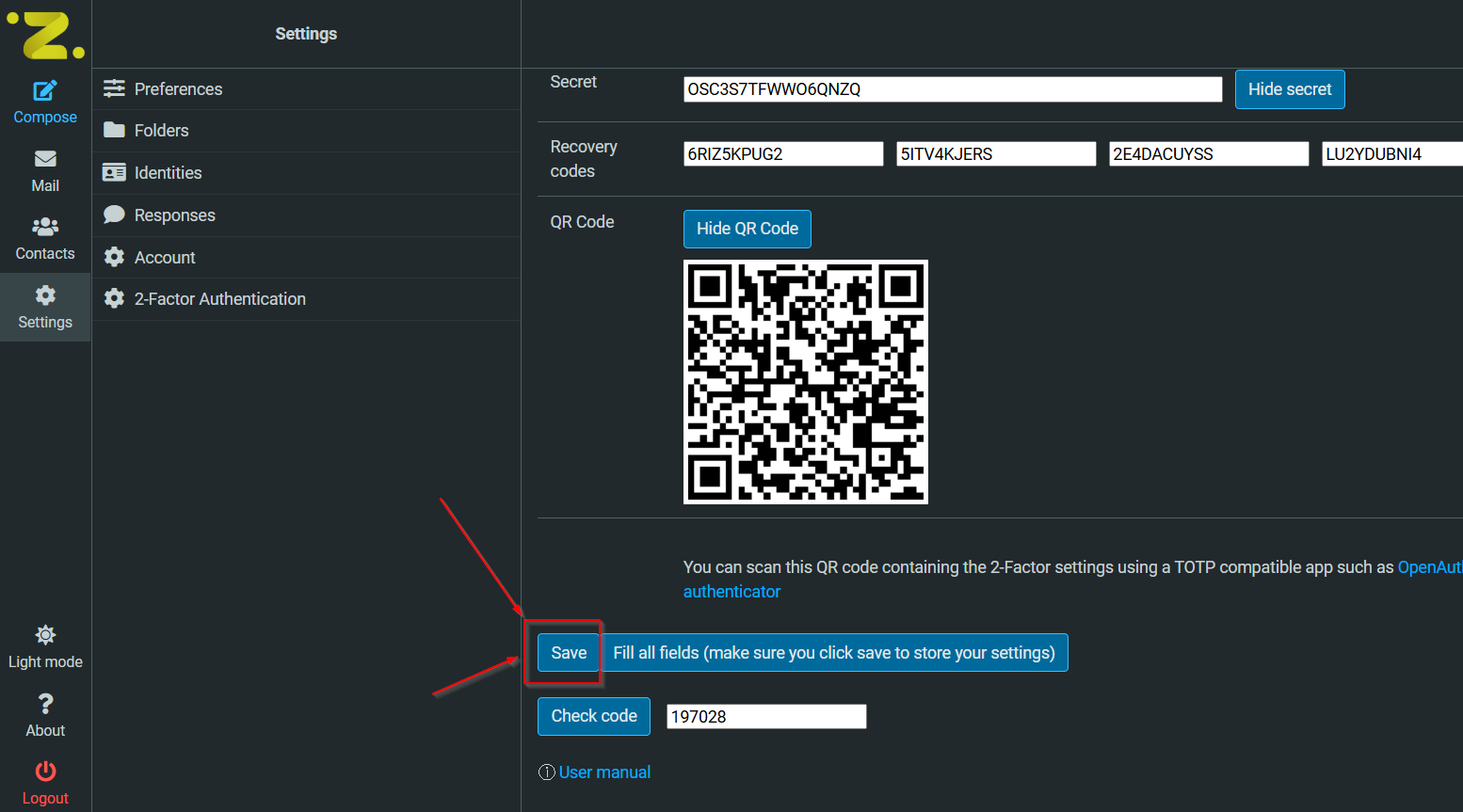
If the code was correct, click Save
Done! Now your account is protected
Important Notes
Every time you log in, after your password, you will be asked for the 6-digit code from the app.
The code changes every 30 seconds — that’s normal.
If you lose your phone, use the recovery codes shown to you during setup.
Need Help?
If you need help setting this up, please contact the support team:
📧 Email: security@zergaw.com 💬 Chat: @Yafet Zerihun, @Hawi Yehulashet
We’re happy to help!